
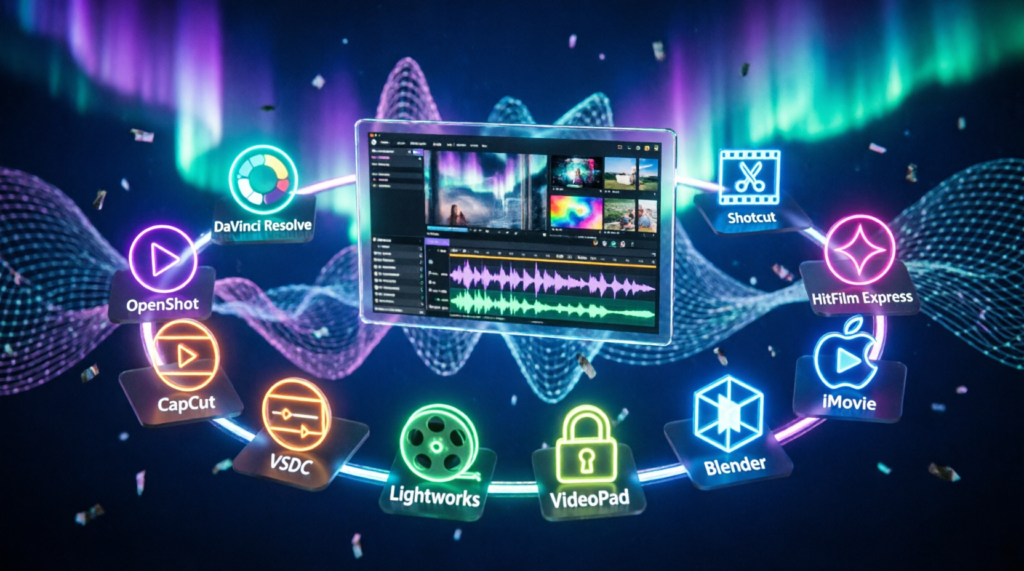
This year’s lineup includes DaVinci Resolve, which offers professional-grade editing for free. Meanwhile, Shotcut and OpenShot provide open-source alternatives with no watermark. For beginners, CapCut for PC delivers a clean interface with built-in effects. In addition, HitFilm Express combines editing with visual effects. However, most free editors limit export quality or add watermarks, so read carefully before downloading.
Table of Contents
Introduction
There is a free video editor that rivals paid software. There is also one that is simple enough for a complete beginner. However, most people waste hours testing the wrong tools before finding the right one.
The problem is, most free editors limit export quality, add watermarks, or crash on large projects. Meanwhile, a few genuinely free tools handle professional work without any of those problems.
For that reason, here are 10 of the best free video editing software for PC this year. I have ranked them from professional-grade to beginner-friendly. In addition, each tool is covered with its strengths and weaknesses, so you can pick what fits your needs.
1. DaVinci Resolve Offers Professional Editing for Free
First of all, DaVinci Resolve is the closest thing to professional editing software available for free. It is used in Hollywood productions and offers color grading tools that paid competitors cannot match. The free version is fully functional, not a trial.
Key Features: Advanced color grading, multi-track timeline, Fairlight audio post-production, Fusion visual effects, and 4K export.
Pros: Professional-grade tools, no watermark, no time limit, and regular updates from Blackmagic Design.
Cons: Steep learning curve, requires a powerful PC, and some features are locked behind the paid Studio version.
Link and Check Subscription Plans: blackmagicdesign.com/products/davinciresolve
2. Shotcut Provides Open Source Power
Meanwhile, Shotcut is a fully open-source video editor with no watermark and no restrictions. It supports hundreds of formats and runs on Windows, macOS, and Linux. The interface is more technical than beginner tools, but powerful.
Key Features: Wide format support, multi-track editing, GPU acceleration, and no watermark on exports.
Pros: Completely free and open source, no watermark, supports many formats, and works on all platforms.
Cons: Interface feels dated, less intuitive than paid tools, and some features require plugins.
Link and Check Subscription Plans: shotcut.org
3. OpenShot Is Beginner-Friendly and Free
On the other hand, OpenShot is designed for beginners. It has a clean interface, drag-and-drop timeline, and built-in animations. It is fully open source and adds no watermark.
Key Features: Drag-and-drop timeline, built-in titles and animations, cross-platform support, and no watermark.
Pros: Very easy to learn, completely free, no watermark, and includes useful templates.
Cons: Crashes on large projects, limited advanced features, and slower rendering than competitors.
Link and Check Subscription Plans: openshot.org
4. HitFilm Express Combines Editing and VFX
Interestingly, HitFilm Express combines video editing with visual effects in one package. It is popular among action-focused creators and YouTubers who need effects without expensive software.
Key Features: Built-in VFX, motion tracking, 3D compositing, and support for 4K export.
Pros: Free version is powerful, VFX tools included, and great for action videos.
Cons: Requires account creation, some effects are paid add-ons, and demands a strong PC.
Link and Check Subscription Plans: fxhome.com
5. CapCut for PC Offers Modern Editing
In contrast, CapCut for PC is a relatively new option built by ByteDance. It offers a modern interface, auto-captions, and built-in effects. It is especially popular for short-form content.
Key Features: Auto-captions, background removal, built-in effects, and direct export to TikTok.
Pros: Modern and clean interface, great for short-form video, free with no watermark, and fast rendering.
Cons: Limited advanced features, requires account for some features, and heavier than it looks.
Link and Check Subscription Plans: capcut.com
6. VSDC Free Video Editor Handles Complex Projects
What is more, VSDC Free Video Editor is a non-linear editor with advanced features usually found in paid tools. It supports chroma key, masking, and motion tracking without cost.
Key Features: Non-linear editing, chroma key, masking, motion tracking, and 4K export.
Pros: Advanced features for free, no watermark, and handles complex projects.
Cons: Interface is not beginner-friendly, performance issues on older PCs, and limited customer support.
Link and Check Subscription Plans: vsdc-free-video-editor.com
7. Lightworks Has a Hollywood Pedigree
Still, Lightworks has been used in Hollywood films for decades. The free version offers professional tools with a 720p export limit, which is the main drawback.
Key Features: Professional timeline, multi-cam editing, advanced trimming, and industry-standard tools.
Pros: Hollywood-grade tools, stable and mature software, and free version is fully functional for editing.
Cons: Free version limits export to 720p, requires account creation, and learning curve is steep.
Link and Check Subscription Plans: lwks.com
8. VideoPad Is Simple and Fast
Additionally, VideoPad is a lightweight editor that is easy to learn. It is developed by NCH Software and offers a free version for non-commercial use.
Key Features: Simple timeline, built-in effects, audio tools, and support for 360-degree video.
Pros: Very easy to use, fast rendering, and good for simple projects.
Cons: Free version is for non-commercial use only, limited advanced features, and pushes paid upgrades.
Link and Check Subscription Plans: nchsoftware.com/videopad
9. Blender Handles Video Editing and 3D
Furthermore, Blender is known for 3D modeling, but it also includes a full video editor. It is completely free, open source, and used by professionals worldwide.
Key Features: Video sequence editor, 3D integration, compositing, and support for complex workflows.
Pros: Completely free, powerful 3D and video tools, and used by industry professionals.
Cons: Interface is complex, video editor is not the primary focus, and requires powerful hardware.
Link and Check Subscription Plans: blender.org
10. iMovie Is Free on macOS
Finally, iMovie is Apple’s free video editor for macOS. It is simple, fast, and integrated into the Apple ecosystem. It is not available for Windows.
Key Features: Simple timeline, built-in trailers, 4K export, and seamless iCloud integration.
Pros: Free on macOS, very easy to use, fast rendering, and great for beginners.
Cons: macOS only, limited advanced features, and no Windows version.
Link and Check Subscription Plans: apple.com/imovie
Conclusion
The 10 free video editors above cover a wide range of needs. DaVinci Resolve is the top pick for professional work. Meanwhile, Shotcut and OpenShot serve open-source users well. In addition, CapCut for PC is ideal for short-form creators, while HitFilm Express handles action videos. However, each tool has trade-offs in learning curve, performance, or export limits.
Each has its strengths and weaknesses. No single free editor is perfect for every project. What matters most is choosing according to your needs, testing two or three options, and committing to one long enough to master it.
Which editor will you try first? Let me know in the comments.
Read also: How to Monetize YouTube This Year, Requirements and Tips to Get Approved
