
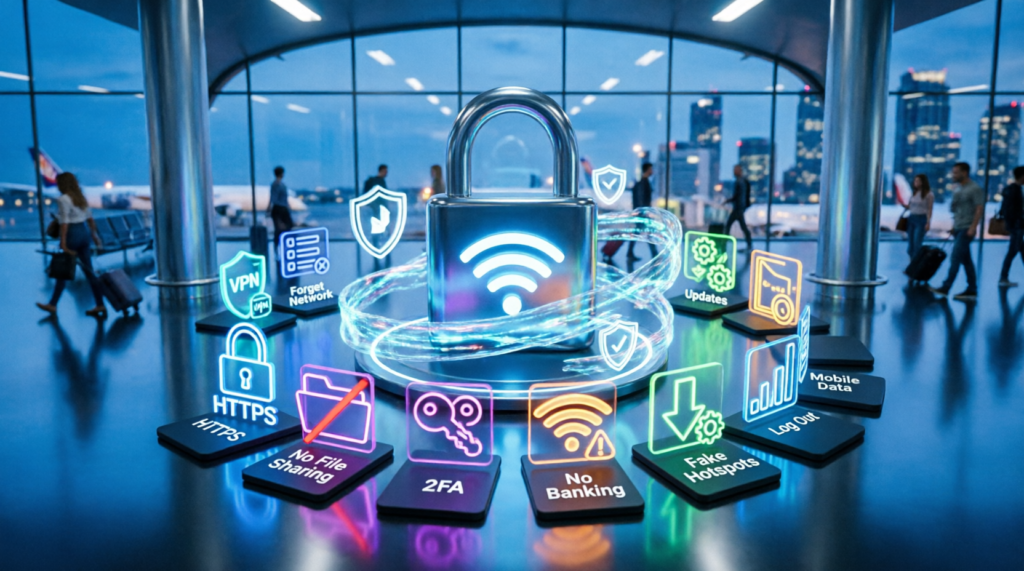
Public Wi-Fi is convenient, but it is also one of the easiest places for attackers to steal data. To protect your data on public Wi-Fi, you need more than just caution. Meanwhile, most people connect without checking whether the network is legitimate. Public Wi-Fi is convenient, but it is also one of the easiest places for attackers to steal data. Meanwhile, most people connect without checking whether the network is legitimate. For safer browsing, always use a VPN and stick to HTTPS websites. In addition, enable two-factor authentication on all your important accounts. However, the biggest risk is not the network itself, but the habits people use on it.
Table of Contents
Introduction
There is a public Wi-Fi network that is completely safe to use. There is also one that looks identical to it but steals everything you type. However, most people cannot tell the difference.
The problem is, public Wi-Fi is designed for convenience, not security. Meanwhile, attackers know this and set up fake hotspots in cafes, airports, and hotels.
For that reason, here is a complete guide on how to protect your data when using public Wi-Fi. I have broken it down by risk and solution, so you can apply it immediately. In addition, each section includes common mistakes so you can avoid them.
1. Always Use a VPN on Public Wi-Fi
First of all, a VPN is the single most effective protection on public Wi-Fi. It encrypts all your traffic, so even if someone intercepts it, they see only scrambled data. Without a VPN, your data travels in plain text on many networks.
Why It Matters: Public Wi-Fi networks are often unencrypted. Anyone on the same network can potentially see what you send. A VPN closes that gap completely.
How to Apply It: Use a trusted VPN before connecting. Proton VPN, Windscribe, and TunnelBear are safe free options. Avoid unknown free VPNs that sell your data.
2. Check for HTTPS Before Entering Data
Meanwhile, HTTPS encrypts the connection between your browser and the website. Look for the padlock icon in the address bar. If a site does not use HTTPS, do not enter any personal information.
Why It Matters: Even with a VPN, HTTPS adds another layer of protection. It prevents attackers from reading data on the website itself.
How to Apply It: Enable “HTTPS-Only Mode” in your browser. Chrome, Firefox, and Edge all support this. Avoid entering passwords on sites without HTTPS.
3. Turn Off File Sharing and AirDrop
On the other hand, file sharing features are a major risk on public networks. When enabled, other devices on the same network can sometimes access your files. This applies to Windows, macOS, and mobile devices.
Why It Matters: Public networks are shared spaces. File sharing makes your device visible to strangers. Turning it off removes that exposure.
How to Apply It: Disable file sharing in your system settings. On mobile, set AirDrop to “Contacts Only” or turn it off. Do the same with Bluetooth when not in use.
4. Use Two-Factor Authentication Everywhere
Interestingly, two-factor authentication (2FA) protects you even if your password is stolen. Even if an attacker captures your login, they cannot get past the second factor. This applies to email, banking, and social media.
Why It Matters: Passwords alone are no longer enough. Data breaches happen constantly. 2FA blocks most account takeovers.
How to Apply It: Enable 2FA on Gmail, banking apps, and social media. Use an authenticator app instead of SMS when possible. SMS can be intercepted on public networks.
5. Avoid Sensitive Tasks on Public Wi-Fi
In contrast, some activities should never be done on public Wi-Fi. Online banking, tax filing, and medical portal logins are all high-risk. Even with protection, the risk is not worth it.
Why It Matters: Sensitive accounts cause the most damage if compromised. Financial and medical data cannot be easily changed like a password.
How to Apply It: Wait until you are on a trusted network for banking. Use mobile data for urgent tasks. Save sensitive work for home or office Wi-Fi.
6. Watch Out for Fake Hotspots
What is more, attackers set up fake Wi-Fi networks with names that look legitimate. A network called “Cafe_Free_WiFi” might be real, or it might be a trap. Once you connect, everything you do is visible to the attacker.
Why It Matters: Fake hotspots are one of the most common attack methods. They are easy to set up and hard to detect.
How to Apply It: Always confirm the exact network name with staff. Avoid networks with generic names. Turn off “auto-connect to open networks” in your device settings.
7. Keep Your Devices Updated
Still, outdated software is a major risk on public Wi-Fi. Security patches fix vulnerabilities that attackers exploit. Every update you skip is a door left open.
Why It Matters: Attackers target known vulnerabilities. Updates close those gaps. This applies to your OS, browser, and apps.
How to Apply It: Enable automatic updates on all devices. Update your browser before using public Wi-Fi. Restart your device after major updates.
8. Log Out of Accounts When Done
Additionally, staying logged in on public Wi-Fi increases risk. If your device is lost or stolen, active sessions give immediate access. Logging out closes that window.
Why It Matters: Sessions can be hijacked even after you leave the network. Logging out invalidates the session.
How to Apply It: Log out of email, banking, and social media after use. Clear browser cookies on shared computers. Use incognito mode for sensitive searches.
9. Use Mobile Data for Sensitive Tasks
Furthermore, mobile data is almost always safer than public Wi-Fi. Cellular networks are encrypted by default. If you have mobile data available, use it for anything sensitive.
Why It Matters: Mobile networks use strong encryption that is hard to intercept. Public Wi-Fi does not offer the same protection.
How to Apply It: Use mobile data for banking, email, and work. Switch to public Wi-Fi only for browsing and streaming. Turn off “auto-join” for public networks.
10. Forget the Network When You Leave
Finally, make your device forget public networks after use. This prevents automatic reconnection next time. It also reduces exposure to fake hotspots with the same name.
Why It Matters: Auto-reconnect is convenient but risky. Your device may connect to a malicious network without you knowing.
How to Apply It: Go to Wi-Fi settings and select “Forget This Network.” Do this for every public network you use. Disable auto-join for open networks.
How to Test If Your Connection Is Safe
Additionally, you can check your connection safety in seconds. Look for the padlock icon in your browser. Visit a site like https://www.howsmyssl.com to check encryption. Use a VPN status indicator in your menu bar or system tray.
If your VPN is on and the site uses HTTPS, you are reasonably safe. If either is missing, avoid entering any personal data.
Conclusion
Protecting your data on public Wi-Fi is less about avoiding networks and more about building safe habits. A VPN encrypts your traffic, and HTTPS adds a second layer. Meanwhile, two-factor authentication protects your accounts even if your password leaks. In addition, avoiding sensitive tasks and fake hotspots removes most of the risk. However, the simplest habits like logging out and forgetting networks often matter most.
Each step builds on the others. No single tool makes you completely safe. What matters most is using a VPN, checking for HTTPS, and treating public Wi-Fi as a shared space.
Which step do you already do? Let me know in the comments.
Read also: 10 Best Free VPN Apps This Year, Only 3 Are Safe to Use
